


Microsoft Excel connector
OAuth 2.0 Files & DocumentsAnalyticsConnect to Microsoft Excel. Access, read, and modify spreadsheets stored in OneDrive or SharePoint through Microsoft Graph API.
Microsoft Excel connector
-
Install the SDK
Section titled “Install the SDK”Terminal window npm install @scalekit-sdk/nodeTerminal window pip install scalekit -
Set your credentials
Section titled “Set your credentials”Add your Scalekit credentials to your
.envfile. Find values in app.scalekit.com > Developers > API Credentials..env SCALEKIT_ENVIRONMENT_URL=<your-environment-url>SCALEKIT_CLIENT_ID=<your-client-id>SCALEKIT_CLIENT_SECRET=<your-client-secret> -
Set up the connector
Section titled “Set up the connector”Register your Microsoft Excel credentials with Scalekit so it handles the token lifecycle. You do this once per environment.
Dashboard setup steps
Register your Scalekit environment with the Microsoft Excel connector so Scalekit handles the authentication flow and token lifecycle for you. The connection name you create will be used to identify and invoke the connection programmatically. Then complete the configuration in your application as follows:
-
Set up auth redirects
-
In Scalekit dashboard, go to AgentKit > Connections > Create Connection. Find Excel and click Create. Copy the redirect URI. It will look like
https://<SCALEKIT_ENVIRONMENT_URL>/sso/v1/oauth/<CONNECTION_ID>/callback.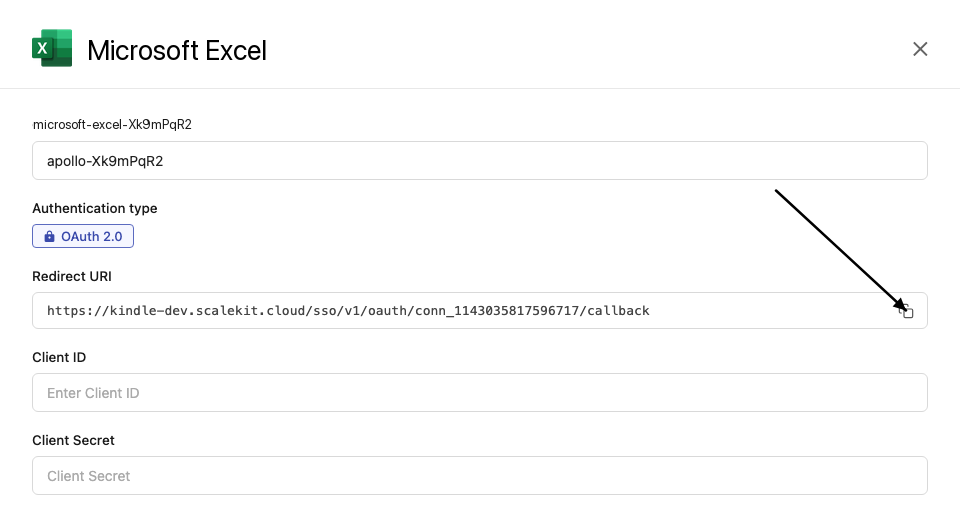
-
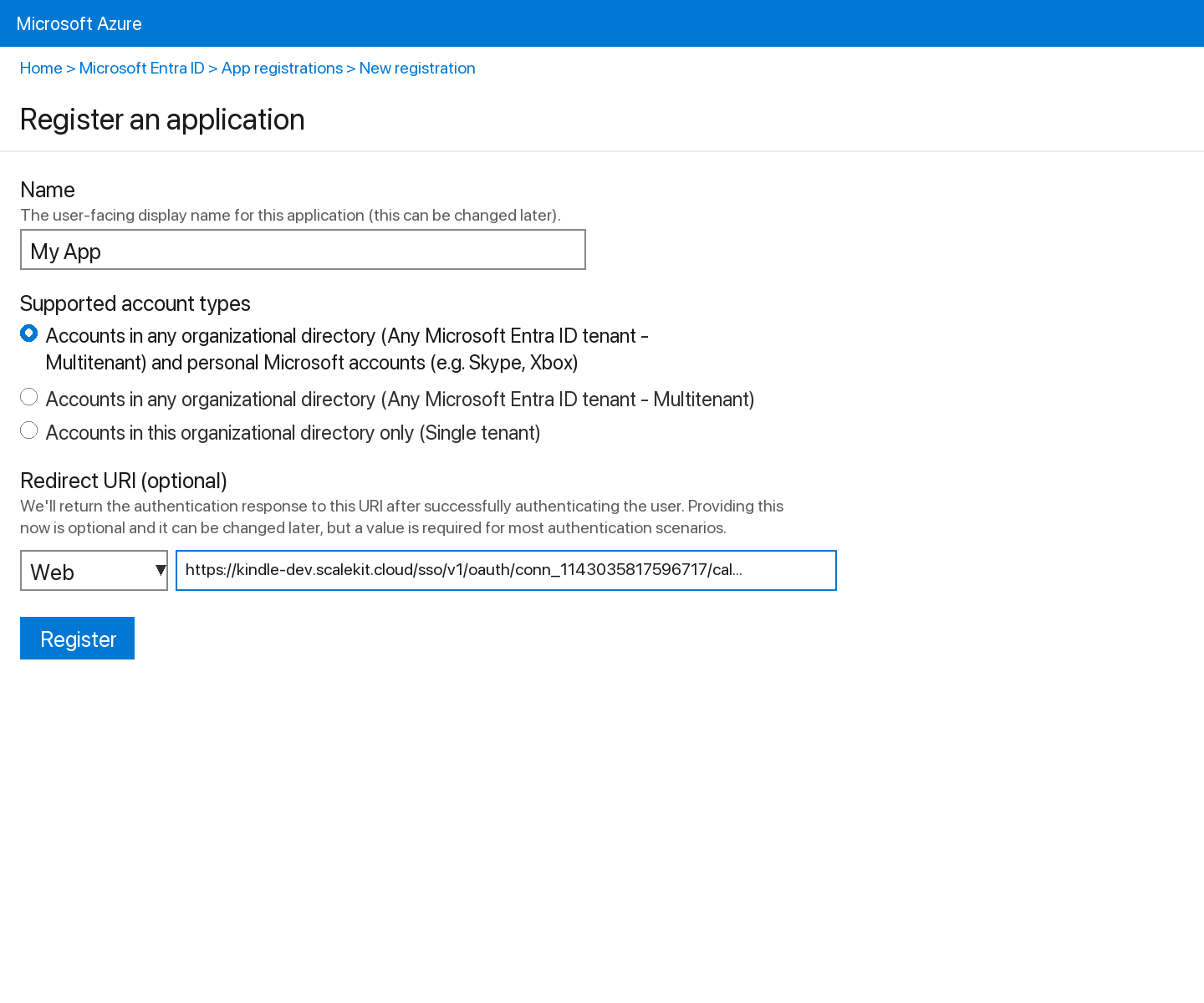
Sign into portal.azure.com and go to Microsoft Entra ID → App registrations → New registration.
-
Enter a name for your app.
-
Under Supported account types, select Accounts in any organizational directory (Any Azure AD directory - Multitenant) and personal Microsoft accounts.
-
Under Redirect URI, select Web and paste the redirect URI from step 1. Click Register.
-
-
Get your client credentials
-
Go to Certificates & secrets → New client secret, set an expiry, and click Add. Copy the Value immediately.
-
From the Overview page, copy the Application (client) ID.
-
-
Add credentials in Scalekit
-
In Scalekit dashboard, go to AgentKit > Connections and open the connection you created.
-
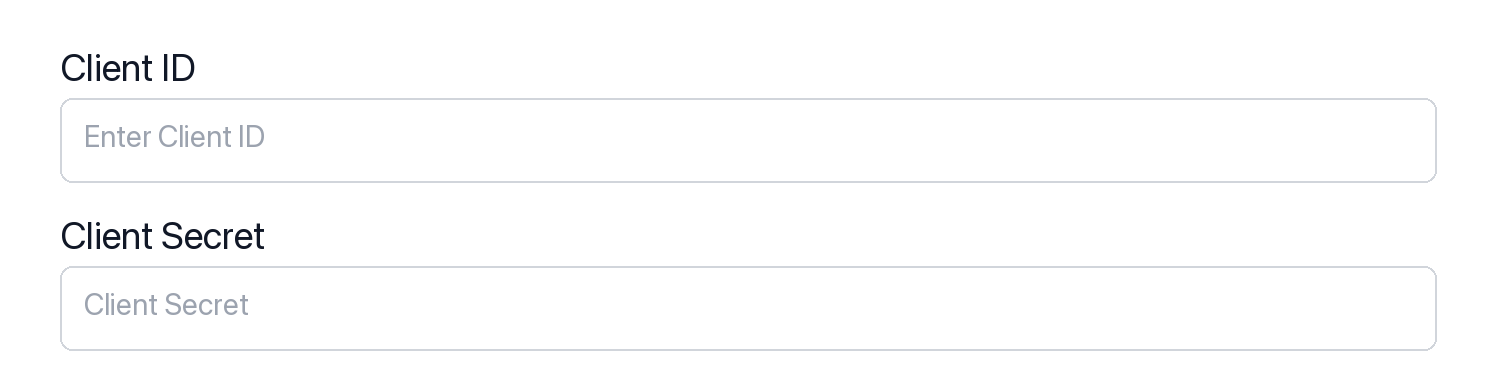
Enter your credentials:
- Client ID (Application (client) ID from Azure)
- Client Secret (from Certificates & secrets)
- Permissions (scopes — see Microsoft Graph permissions reference)
-
Click Save.
-
-
-
Authorize and make your first call
Section titled “Authorize and make your first call”quickstart.ts import { ScalekitClient } from '@scalekit-sdk/node'import 'dotenv/config'const scalekit = new ScalekitClient(process.env.SCALEKIT_ENV_URL,process.env.SCALEKIT_CLIENT_ID,process.env.SCALEKIT_CLIENT_SECRET,)const actions = scalekit.actionsconst connector = 'microsoftexcel'const identifier = 'user_123'// Generate an authorization link for the userconst { link } = await actions.getAuthorizationLink({ connectionName: connector, identifier })console.log('Authorize Microsoft Excel:', link)process.stdout.write('Press Enter after authorizing...')await new Promise(r => process.stdin.once('data', r))// Make your first callconst result = await actions.executeTool({connector,identifier,toolName: 'microsoftexcel_list_comments',toolInput: { item_id: 'YOUR_ITEM_ID' },})console.log(result)quickstart.py import osfrom scalekit.client import ScalekitClientfrom dotenv import load_dotenvload_dotenv()scalekit_client = ScalekitClient(env_url=os.getenv("SCALEKIT_ENV_URL"),client_id=os.getenv("SCALEKIT_CLIENT_ID"),client_secret=os.getenv("SCALEKIT_CLIENT_SECRET"),)actions = scalekit_client.actionsconnection_name = "microsoftexcel"identifier = "user_123"# Generate an authorization link for the userlink_response = actions.get_authorization_link(connection_name=connection_name,identifier=identifier,)print("Authorize Microsoft Excel:", link_response.link)input("Press Enter after authorizing...")# Make your first callresult = actions.execute_tool(tool_input={"item_id":"YOUR_ITEM_ID"},tool_name="microsoftexcel_list_comments",connection_name=connection_name,identifier=identifier,)print(result)
What you can do
Section titled “What you can do”Connect this agent connector to let your agent:
- Column add table — Add a new column to an existing Excel table in OneDrive
- Row add table — Add a new row to an Excel table in a workbook stored in OneDrive
- Range clear, merge, sort — Clear the contents, formats, or both from a cell range in an Excel worksheet stored in OneDrive
- Session close — Close an active workbook session for an Excel file in OneDrive
- Create chart, session, table — Create a new chart in an Excel worksheet stored in OneDrive
- Delete chart, table, table column — Delete a chart from an Excel worksheet stored in OneDrive
Common workflows
Section titled “Common workflows”Proxy API call
// Make a request via Scalekit proxyconst result = await actions.request({ connectionName: 'microsoftexcel', identifier: 'user_123', path: '/v1.0/me/drive/root/children', method: 'GET',});console.log(result);# Make a request via Scalekit proxyresult = actions.request( connection_name='microsoftexcel', identifier='user_123', path="/v1.0/me/drive/root/children", method="GET")print(result)Execute a tool
const result = await actions.executeTool({ connector: 'microsoftexcel', identifier: 'user_123', toolName: 'microsoftexcel_list', toolInput: {},});console.log(result);result = actions.execute_tool( connection_name='microsoftexcel', identifier='user_123', tool_name='microsoftexcel_list', tool_input={},)print(result)Tool list
Section titled “Tool list”Use the exact tool names from the Tool list below when you call execute_tool. If you’re not sure which name to use, list the tools available for the current user first.
microsoftexcel_add_table_column
#
Add a new column to an existing Excel table in OneDrive. Optionally specify the column name, its zero-based insertion index (null = append at end), and initial cell values as a 2D array (first row is the header). Returns the created column object. 6 params
Add a new column to an existing Excel table in OneDrive. Optionally specify the column name, its zero-based insertion index (null = append at end), and initial cell values as a 2D array (first row is the header). Returns the created column object.
item_id string required OneDrive item ID of the Excel (.xlsx) file. Example: '01BYE5RZ6QN3ZWBTUFOFD3GSPGOHDJD36K'. table_id string required Name or ID of the table to add the column to. Example: 'Table1' or the GUID assigned by Excel. index integer optional Zero-based index position at which to insert the column. Null or omitted means append the column at the right end of the table. Example: 0 inserts as the first column. name string optional Display name for the new column header. If omitted, Excel auto-generates a name (e.g., 'Column1'). Example: 'Revenue'. session_id string optional Optional workbook session ID from createSession. When provided, sent as the workbook-session-id header. Example: 'cluster=SN2&session=...'. values array optional 2D array of initial cell values for the column, including the header row in the first element. Example: [["Header"],["row1val"],["row2val"]]. Each inner array is one row. If omitted, the column is created empty. microsoftexcel_add_table_row
#
Add a new row to an Excel table in a workbook stored in OneDrive. Provide a 2D array of values (one inner array per row to insert). Optionally specify an index to insert the row at a specific position; omit index to append to the end of the table. 5 params
Add a new row to an Excel table in a workbook stored in OneDrive. Provide a 2D array of values (one inner array per row to insert). Optionally specify an index to insert the row at a specific position; omit index to append to the end of the table.
item_id string required OneDrive item ID of the Excel (.xlsx) file. Example: '01BYE5RZ6QN3ZWBTUFOFD3GSPGOHDJD36K'. table_id string required Table name or numeric ID to add a row to. Example: 'Table1' or '1'. values array required 2D array of values to insert as a new row. Each inner array represents one row; each element is a cell value (string, number, boolean, or null). The number of elements in each inner array must match the table's column count. Example: [["Alice", 95, true]] inserts one row with three cells. index integer optional Zero-based index at which to insert the row. If null or omitted, the row is appended to the end of the table. Example: 0 inserts at the top of the table. session_id string optional Optional workbook session ID from createSession. When provided, sent as the workbook-session-id header. Example: 'cluster=SN2&session=...'. microsoftexcel_clear_range
#
Clear the contents, formats, or both from a cell range in an Excel worksheet stored in OneDrive. Use apply_to to control what is cleared: 'All' clears both content and formatting, 'Contents' clears only values and formulas, 'Formats' clears only cell formatting. 5 params
Clear the contents, formats, or both from a cell range in an Excel worksheet stored in OneDrive. Use apply_to to control what is cleared: 'All' clears both content and formatting, 'Contents' clears only values and formulas, 'Formats' clears only cell formatting.
address string required Cell range address in Excel notation to clear. Examples: 'A1:C10' to clear a multi-cell range, 'B2' to clear a single cell. item_id string required OneDrive item ID of the Excel (.xlsx) file. Example: '01BYE5RZ6QN3ZWBTUFOFD3GSPGOHDJD36K'. worksheet_id string required Worksheet name or GUID containing the range to clear. Example: 'Sheet1'. apply_to string optional What to clear from the range. Valid values: 'All' (clears both content and formatting, default), 'Contents' (clears only values and formulas), 'Formats' (clears only cell formatting). session_id string optional Optional workbook session ID from createSession. When provided, sent as the workbook-session-id header. Example: 'cluster=SN2&session=...'. microsoftexcel_close_session
#
Close an active workbook session for an Excel file in OneDrive. Releases server-side resources associated with the session. Pass the session ID returned by the createSession call as session_id. 2 params
Close an active workbook session for an Excel file in OneDrive. Releases server-side resources associated with the session. Pass the session ID returned by the createSession call as session_id.
item_id string required OneDrive item ID of the Excel (.xlsx) file whose session should be closed. Example: '01BYE5RZ6QN3ZWBTUFOFD3GSPGOHDJD36K'. session_id string required Workbook session ID returned by the createSession call. Sent as the workbook-session-id request header to identify which session to close. Example: 'cluster=SN2&session=...'. microsoftexcel_create_chart
#
Create a new chart in an Excel worksheet stored in OneDrive. Specify the chart type (e.g., ColumnClustered, Line, Pie), the source data range address (e.g., 'A1:B10'), and optionally how series are arranged (Auto, Columns, Rows). Returns the created chart object including its ID. 6 params
Create a new chart in an Excel worksheet stored in OneDrive. Specify the chart type (e.g., ColumnClustered, Line, Pie), the source data range address (e.g., 'A1:B10'), and optionally how series are arranged (Auto, Columns, Rows). Returns the created chart object including its ID.
item_id string required OneDrive item ID of the Excel (.xlsx) file. Example: '01BYE5RZ6QN3ZWBTUFOFD3GSPGOHDJD36K'. source_data string required Cell range address providing the chart source data in Excel notation. Example: 'A1:B10' uses columns A and B, rows 1–10 as the chart data. worksheet_id string required Worksheet name or GUID in which to create the chart. Example: 'Sheet1'. chart_type string optional Type of chart to create. Valid values: ColumnClustered, ColumnStacked, ColumnStacked100, BarClustered, BarStacked, BarStacked100, Line, LineStacked, LineMarkers, Pie, Doughnut, Scatter, Area, Radar, XYScatter. Default is 'ColumnClustered'. series_by string optional How data series are determined from the source range. Valid values: 'Auto' (Excel decides), 'Columns' (each column is a series), 'Rows' (each row is a series). Default is 'Auto'. session_id string optional Optional workbook session ID from createSession. When provided, sent as the workbook-session-id header. Example: 'cluster=SN2&session=...'. microsoftexcel_create_session
#
Create a workbook session for an Excel file in OneDrive. Returns a session ID that can be passed as the workbook-session-id header in subsequent Excel API calls to maintain state and improve performance. Requires the OneDrive item ID of the .xlsx file. 2 params
Create a workbook session for an Excel file in OneDrive. Returns a session ID that can be passed as the workbook-session-id header in subsequent Excel API calls to maintain state and improve performance. Requires the OneDrive item ID of the .xlsx file.
item_id string required OneDrive item ID of the Excel (.xlsx) file to open a session for. Obtain this from the OneDrive file listing or drive item API. Example: '01BYE5RZ6QN3ZWBTUFOFD3GSPGOHDJD36K'. persist_changes boolean optional Whether to persist changes made during the session to the workbook. Set to true (default) to save changes; set to false for a read-only transient session that does not commit edits. microsoftexcel_create_table
#
Create a new Excel table from a cell range in a worksheet stored in OneDrive. Specify the address of the range (e.g., 'A1:D10') and whether the first row contains headers. Returns the created table object including its assigned ID and name. 5 params
Create a new Excel table from a cell range in a worksheet stored in OneDrive. Specify the address of the range (e.g., 'A1:D10') and whether the first row contains headers. Returns the created table object including its assigned ID and name.
address string required Cell range address for the new table in Excel notation. Example: 'A1:D10' creates a table spanning columns A–D and rows 1–10. item_id string required OneDrive item ID of the Excel (.xlsx) file. Example: '01BYE5RZ6QN3ZWBTUFOFD3GSPGOHDJD36K'. worksheet_id string required Worksheet name or GUID in which to create the table. Example: 'Sheet1'. has_headers boolean optional Whether the first row of the range contains column headers. When true (default), the first row becomes the header row of the table. When false, Excel auto-generates header names. session_id string optional Optional workbook session ID from createSession. When provided, sent as the workbook-session-id header. Example: 'cluster=SN2&session=...'. microsoftexcel_create_worksheet
#
Add a new worksheet to an Excel workbook stored in OneDrive. Specify the sheet name. Returns the newly created worksheet object including its ID, name, position, and visibility. 3 params
Add a new worksheet to an Excel workbook stored in OneDrive. Specify the sheet name. Returns the newly created worksheet object including its ID, name, position, and visibility.
item_id string required OneDrive item ID of the Excel (.xlsx) file to add the worksheet to. Example: '01BYE5RZ6QN3ZWBTUFOFD3GSPGOHDJD36K'. name string required Name for the new worksheet tab. Must be unique within the workbook and cannot exceed 31 characters. Example: 'Q1 Sales'. session_id string optional Optional workbook session ID from createSession. When provided, sent as the workbook-session-id header. Example: 'cluster=SN2&session=...'. microsoftexcel_delete_chart
#
Delete a chart from an Excel worksheet stored in OneDrive. This permanently removes the chart from the worksheet. Requires the OneDrive item ID, worksheet name or GUID, and chart name or GUID. 4 params
Delete a chart from an Excel worksheet stored in OneDrive. This permanently removes the chart from the worksheet. Requires the OneDrive item ID, worksheet name or GUID, and chart name or GUID.
chart_id string required Name or ID of the chart to delete. Example: 'Chart 1' or the GUID assigned by Excel. item_id string required OneDrive item ID of the Excel (.xlsx) file. Example: '01BYE5RZ6QN3ZWBTUFOFD3GSPGOHDJD36K'. worksheet_id string required Worksheet name or GUID containing the chart to delete. Example: 'Sheet1'. session_id string optional Optional workbook session ID from createSession. When provided, sent as the workbook-session-id header. Example: 'cluster=SN2&session=...'. microsoftexcel_delete_table
#
Permanently delete a table from an Excel workbook stored in OneDrive. The underlying cell data is preserved but the table formatting and structure are removed. This action cannot be undone. 3 params
Permanently delete a table from an Excel workbook stored in OneDrive. The underlying cell data is preserved but the table formatting and structure are removed. This action cannot be undone.
item_id string required OneDrive item ID of the Excel (.xlsx) file. Example: '01BYE5RZ6QN3ZWBTUFOFD3GSPGOHDJD36K'. table_id string required Table name or numeric ID to delete. Example: 'Table1' or '1'. This permanently removes the table structure (cell data is kept). session_id string optional Optional workbook session ID from createSession. When provided, sent as the workbook-session-id header. Example: 'cluster=SN2&session=...'. microsoftexcel_delete_table_column
#
Delete a column from an Excel table by its zero-based index. This permanently removes the column and all its data from the table. Requires the OneDrive item ID, table name or ID, and the column index to delete. 4 params
Delete a column from an Excel table by its zero-based index. This permanently removes the column and all its data from the table. Requires the OneDrive item ID, table name or ID, and the column index to delete.
column_index integer required Zero-based index of the column to delete within the table. Example: 0 deletes the first column, 2 deletes the third column. item_id string required OneDrive item ID of the Excel (.xlsx) file. Example: '01BYE5RZ6QN3ZWBTUFOFD3GSPGOHDJD36K'. table_id string required Name or ID of the table containing the column to delete. Example: 'Table1' or the GUID assigned by Excel. session_id string optional Optional workbook session ID from createSession. When provided, sent as the workbook-session-id header. Example: 'cluster=SN2&session=...'. microsoftexcel_delete_table_row
#
Permanently delete a row from an Excel table in a workbook stored in OneDrive by its zero-based row index. All rows below the deleted row shift up by one. This action cannot be undone. 4 params
Permanently delete a row from an Excel table in a workbook stored in OneDrive by its zero-based row index. All rows below the deleted row shift up by one. This action cannot be undone.
item_id string required OneDrive item ID of the Excel (.xlsx) file. Example: '01BYE5RZ6QN3ZWBTUFOFD3GSPGOHDJD36K'. row_index integer required Zero-based index of the row to delete within the table. The header row is not counted; index 0 refers to the first data row. Example: 0 deletes the first data row. table_id string required Table name or numeric ID from which to delete the row. Example: 'Table1' or '1'. session_id string optional Optional workbook session ID from createSession. When provided, sent as the workbook-session-id header. Example: 'cluster=SN2&session=...'. microsoftexcel_delete_worksheet
#
Permanently delete a worksheet from an Excel workbook stored in OneDrive. This action cannot be undone. The workbook must have at least one remaining visible worksheet after deletion. 3 params
Permanently delete a worksheet from an Excel workbook stored in OneDrive. This action cannot be undone. The workbook must have at least one remaining visible worksheet after deletion.
item_id string required OneDrive item ID of the Excel (.xlsx) file. Example: '01BYE5RZ6QN3ZWBTUFOFD3GSPGOHDJD36K'. worksheet_id string required Worksheet name or GUID to delete. Example: 'Sheet1' or '{00000000-0001-0000-0000-000000000000}'. session_id string optional Optional workbook session ID from createSession. When provided, sent as the workbook-session-id header. Example: 'cluster=SN2&session=...'. microsoftexcel_export_to_pdf
#
Export an Excel workbook stored in OneDrive to PDF format. Uses the Microsoft Graph OneDrive content endpoint with format=pdf query parameter. Returns the PDF binary content. The response may be a direct 200 with the PDF body or a 302 redirect to a download URL depending on file size. 1 param
Export an Excel workbook stored in OneDrive to PDF format. Uses the Microsoft Graph OneDrive content endpoint with format=pdf query parameter. Returns the PDF binary content. The response may be a direct 200 with the PDF body or a 302 redirect to a download URL depending on file size.
item_id string required OneDrive item ID of the Excel (.xlsx) file to export. Example: '01BYE5RZ6QN3ZWBTUFOFD3GSPGOHDJD36K'. microsoftexcel_filter_table
#
Apply a filter to a column in an Excel table stored in OneDrive. Specify the filter criteria type (e.g., Values, Dynamic, Top, Custom) and the values or criteria to filter by. For 'Values' filtering, provide an array of exact string values to show. The filter is applied in place; no data is returned. 6 params
Apply a filter to a column in an Excel table stored in OneDrive. Specify the filter criteria type (e.g., Values, Dynamic, Top, Custom) and the values or criteria to filter by. For 'Values' filtering, provide an array of exact string values to show. The filter is applied in place; no data is returned.
column_id string required Name or ID of the column within the table on which to apply the filter. Example: 'Status' or the column's integer ID. item_id string required OneDrive item ID of the Excel (.xlsx) file. Example: '01BYE5RZ6QN3ZWBTUFOFD3GSPGOHDJD36K'. table_id string required Name or ID of the table to filter. Example: 'Table1' or the GUID assigned by Excel. values array required Array of string values to filter by when filter_on is 'Values'. Only rows whose cell in this column matches one of these values will be shown. Example: ["Active", "Pending"]. filter_on string optional Filter type that determines how the criteria are applied. Valid values: 'Values' (match exact values), 'Custom' (custom expression), 'CellColor' (cell background color), 'FontColor' (cell font color), 'Dynamic' (dynamic filter such as Above Average), 'Top10' (top or bottom N items), 'Icon' (cell icon). Default is 'Values'. session_id string optional Optional workbook session ID from createSession. When provided, sent as the workbook-session-id header. Example: 'cluster=SN2&session=...'. microsoftexcel_get_range
#
Retrieve the values, formulas, format, and address of a cell range in an Excel worksheet stored in OneDrive. Specify the range using standard Excel notation (e.g., 'A1:C10' or 'B2'). Optionally accepts a workbook session ID. 4 params
Retrieve the values, formulas, format, and address of a cell range in an Excel worksheet stored in OneDrive. Specify the range using standard Excel notation (e.g., 'A1:C10' or 'B2'). Optionally accepts a workbook session ID.
address string required Cell range address in Excel notation to retrieve. Examples: 'A1' for a single cell, 'A1:C10' for a multi-cell range, 'Sheet1!A1:B5' to target a specific sheet within the address. item_id string required OneDrive item ID of the Excel (.xlsx) file. Example: '01BYE5RZ6QN3ZWBTUFOFD3GSPGOHDJD36K'. worksheet_id string required Worksheet name or GUID containing the range. Example: 'Sheet1' or '{00000000-0001-0000-0000-000000000000}'. session_id string optional Optional workbook session ID from createSession. When provided, sent as the workbook-session-id header. Example: 'cluster=SN2&session=...'. microsoftexcel_get_table
#
Retrieve details of a specific table in an Excel workbook stored in OneDrive, including its name, style, column count, and header/total row settings. Accepts either a numeric table ID or the table name. 3 params
Retrieve details of a specific table in an Excel workbook stored in OneDrive, including its name, style, column count, and header/total row settings. Accepts either a numeric table ID or the table name.
item_id string required OneDrive item ID of the Excel (.xlsx) file. Example: '01BYE5RZ6QN3ZWBTUFOFD3GSPGOHDJD36K'. table_id string required Table name or numeric ID to retrieve. Example: 'Table1' or '1'. Both the table name and the workbook-assigned numeric ID are accepted. session_id string optional Optional workbook session ID from createSession. When provided, sent as the workbook-session-id header. Example: 'cluster=SN2&session=...'. microsoftexcel_get_worksheet
#
Retrieve the properties of a specific worksheet in an Excel workbook stored in OneDrive. Use the worksheet name or its GUID as the worksheet_id. Optionally accepts a workbook session ID. 3 params
Retrieve the properties of a specific worksheet in an Excel workbook stored in OneDrive. Use the worksheet name or its GUID as the worksheet_id. Optionally accepts a workbook session ID.
item_id string required OneDrive item ID of the Excel (.xlsx) file. Example: '01BYE5RZ6QN3ZWBTUFOFD3GSPGOHDJD36K'. worksheet_id string required The worksheet name or GUID to retrieve. Use the sheet tab name (e.g., 'Sheet1') or the worksheet's unique GUID. Example: 'Sheet1' or '{00000000-0001-0000-0000-000000000000}'. session_id string optional Optional workbook session ID from createSession. When provided, sent as the workbook-session-id header. Example: 'cluster=SN2&session=...'. microsoftexcel_list_charts
#
List all charts in an Excel worksheet stored in OneDrive. Returns chart names, IDs, type, dimensions, and position. Supports OData $top for pagination. 4 params
List all charts in an Excel worksheet stored in OneDrive. Returns chart names, IDs, type, dimensions, and position. Supports OData $top for pagination.
item_id string required OneDrive item ID of the Excel (.xlsx) file. Example: '01BYE5RZ6QN3ZWBTUFOFD3GSPGOHDJD36K'. worksheet_id string required Worksheet name or GUID containing the charts to list. Example: 'Sheet1'. $top integer optional Maximum number of charts to return (1–1000). Defaults to server-defined page size. session_id string optional Optional workbook session ID from createSession. When provided, sent as the workbook-session-id header. Example: 'cluster=SN2&session=...'. microsoftexcel_list_comments
#
List all comments in an Excel workbook stored in OneDrive. Returns comment IDs, author information, content, cell location, and creation date. Supports OData $top for pagination. 3 params
List all comments in an Excel workbook stored in OneDrive. Returns comment IDs, author information, content, cell location, and creation date. Supports OData $top for pagination.
item_id string required OneDrive item ID of the Excel (.xlsx) file. Example: '01BYE5RZ6QN3ZWBTUFOFD3GSPGOHDJD36K'. $top integer optional Maximum number of comments to return (1–1000). Defaults to server-defined page size. session_id string optional Optional workbook session ID from createSession. When provided, sent as the workbook-session-id header. Example: 'cluster=SN2&session=...'. microsoftexcel_list_named_items
#
List all named items (named ranges and constants) in an Excel workbook stored in OneDrive. Returns the name, type, value, and scope for each named item. Supports OData $top for pagination and $select for field projection. 4 params
List all named items (named ranges and constants) in an Excel workbook stored in OneDrive. Returns the name, type, value, and scope for each named item. Supports OData $top for pagination and $select for field projection.
item_id string required OneDrive item ID of the Excel (.xlsx) file. Example: '01BYE5RZ6QN3ZWBTUFOFD3GSPGOHDJD36K'. $select string optional Comma-separated list of properties to return for each named item. Example: 'name,type,value' to return only those fields. $top integer optional Maximum number of named items to return (1–1000). Defaults to server-defined page size. session_id string optional Optional workbook session ID from createSession. When provided, sent as the workbook-session-id header. Example: 'cluster=SN2&session=...'. microsoftexcel_list_table_columns
#
List all columns in an Excel table in a workbook stored in OneDrive. Returns column objects including their name, index, and values. Supports OData pagination with $top and field selection with $select. 5 params
List all columns in an Excel table in a workbook stored in OneDrive. Returns column objects including their name, index, and values. Supports OData pagination with $top and field selection with $select.
item_id string required OneDrive item ID of the Excel (.xlsx) file. Example: '01BYE5RZ6QN3ZWBTUFOFD3GSPGOHDJD36K'. table_id string required Table name or numeric ID whose columns to list. Example: 'Table1' or '1'. $select string optional Comma-separated list of properties to return for each column. Example: 'id,name' to return only the column ID and name. $top integer optional Maximum number of columns to return. Useful for tables with many columns. Example: 10. session_id string optional Optional workbook session ID from createSession. When provided, sent as the workbook-session-id header. Example: 'cluster=SN2&session=...'. microsoftexcel_list_table_rows
#
List rows in an Excel table stored in OneDrive. Returns an array of row objects, each containing a values array with the cell data. Supports OData pagination with $top and $skip. 5 params
List rows in an Excel table stored in OneDrive. Returns an array of row objects, each containing a values array with the cell data. Supports OData pagination with $top and $skip.
item_id string required OneDrive item ID of the Excel (.xlsx) file. Example: '01BYE5RZ6QN3ZWBTUFOFD3GSPGOHDJD36K'. table_id string required Table name or numeric ID whose rows to list. Example: 'Table1' or '1'. $skip integer optional Number of rows to skip for pagination. Use in combination with $top to page through large tables. Example: 20 to skip the first 20 rows. $top integer optional Maximum number of rows to return. Defaults to server page size. Example: 50 to return up to 50 rows. session_id string optional Optional workbook session ID from createSession. When provided, sent as the workbook-session-id header. Example: 'cluster=SN2&session=...'. microsoftexcel_list_tables
#
List all tables in an Excel workbook stored in OneDrive. Returns table names, IDs, style, and header/total row settings. Supports OData query options for pagination and field selection. 4 params
List all tables in an Excel workbook stored in OneDrive. Returns table names, IDs, style, and header/total row settings. Supports OData query options for pagination and field selection.
item_id string required OneDrive item ID of the Excel (.xlsx) file. Example: '01BYE5RZ6QN3ZWBTUFOFD3GSPGOHDJD36K'. $select string optional Comma-separated list of properties to return. Example: 'id,name,style' to return only those fields for each table. $top integer optional Maximum number of tables to return (1–1000). Defaults to server-defined page size. session_id string optional Optional workbook session ID from createSession. When provided, sent as the workbook-session-id header. Example: 'cluster=SN2&session=...'. microsoftexcel_list_worksheets
#
List all worksheets in an Excel workbook stored in OneDrive. Supports OData query parameters for field selection and pagination. Optionally accepts a workbook session ID for session-based access. 4 params
List all worksheets in an Excel workbook stored in OneDrive. Supports OData query parameters for field selection and pagination. Optionally accepts a workbook session ID for session-based access.
item_id string required OneDrive item ID of the Excel (.xlsx) file. Example: '01BYE5RZ6QN3ZWBTUFOFD3GSPGOHDJD36K'. $select string optional Comma-separated list of properties to return for each worksheet. Example: 'id,name,position,visibility'. $top integer optional Maximum number of worksheets to return. Example: 10. session_id string optional Optional workbook session ID from createSession. When provided, sent as the workbook-session-id header for session-based access. Example: 'cluster=SN2&session=...'. microsoftexcel_merge_range
#
Merge a cell range in an Excel worksheet stored in OneDrive. Specify the range address (e.g., 'A1:C3') and optionally set 'across' to true to merge each row separately rather than merging the entire block into one cell. 5 params
Merge a cell range in an Excel worksheet stored in OneDrive. Specify the range address (e.g., 'A1:C3') and optionally set 'across' to true to merge each row separately rather than merging the entire block into one cell.
address string required Cell range address in Excel notation to merge. Examples: 'A1:C3' for a 3-column by 3-row block, 'B2:D4' for a rectangular range. item_id string required OneDrive item ID of the Excel (.xlsx) file. Example: '01BYE5RZ6QN3ZWBTUFOFD3GSPGOHDJD36K'. worksheet_id string required Worksheet name or GUID containing the range to merge. Example: 'Sheet1'. across boolean optional When true, merges cells in each row of the range separately (row-by-row merge) instead of merging the entire block into a single cell. Defaults to false. session_id string optional Optional workbook session ID from createSession. When provided, sent as the workbook-session-id header. Example: 'cluster=SN2&session=...'. microsoftexcel_protect_worksheet
#
Apply protection to a worksheet in an Excel workbook stored in OneDrive. You can optionally set a password and configure which actions are allowed while the sheet is protected (e.g., allow formatting cells but prevent deleting rows). 15 params
Apply protection to a worksheet in an Excel workbook stored in OneDrive. You can optionally set a password and configure which actions are allowed while the sheet is protected (e.g., allow formatting cells but prevent deleting rows).
item_id string required OneDrive item ID of the Excel (.xlsx) file. Example: '01BYE5RZ6QN3ZWBTUFOFD3GSPGOHDJD36K'. worksheet_id string required Worksheet name or GUID to protect. Example: 'Sheet1' or '{00000000-0001-0000-0000-000000000000}'. allow_auto_filter boolean optional Whether to allow AutoFilter operations while the worksheet is protected. Default is false. allow_delete_columns boolean optional Whether to allow deleting columns while the worksheet is protected. Default is false. allow_delete_rows boolean optional Whether to allow deleting rows while the worksheet is protected. Default is false. allow_format_cells boolean optional Whether to allow formatting cells while the worksheet is protected. Default is false. allow_format_columns boolean optional Whether to allow formatting columns while the worksheet is protected. Default is false. allow_format_rows boolean optional Whether to allow formatting rows while the worksheet is protected. Default is false. allow_insert_columns boolean optional Whether to allow inserting columns while the worksheet is protected. Default is false. allow_insert_hyperlinks boolean optional Whether to allow inserting hyperlinks while the worksheet is protected. Default is false. allow_insert_rows boolean optional Whether to allow inserting rows while the worksheet is protected. Default is false. allow_pivot_tables boolean optional Whether to allow PivotTable operations while the worksheet is protected. Default is false. allow_sort boolean optional Whether to allow sorting while the worksheet is protected. Default is false. password string optional Optional password to protect the worksheet. If set, users must enter this password to unprotect the sheet. Example: 'MySecretPass123'. session_id string optional Optional workbook session ID from createSession. When provided, sent as the workbook-session-id header. Example: 'cluster=SN2&session=...'. microsoftexcel_sort_range
#
Apply a sort to a cell range in an Excel worksheet stored in OneDrive. Specify one or more sort fields defining which column index to sort by and whether to sort ascending or descending. Optionally control case sensitivity and whether the range has a header row. 7 params
Apply a sort to a cell range in an Excel worksheet stored in OneDrive. Specify one or more sort fields defining which column index to sort by and whether to sort ascending or descending. Optionally control case sensitivity and whether the range has a header row.
address string required Cell range address in Excel notation to sort. Example: 'A1:D20' to sort a 4-column, 20-row range. fields array required Array of sort field objects defining the sort criteria. Each object must have a 'key' (zero-based column index within the range) and optionally 'ascending' (bool, default true) and 'sortOn' (e.g., 'Value', 'CellColor', 'FontColor', 'Icon'). Example: [{"key": 0, "ascending": true, "sortOn": "Value"}]. item_id string required OneDrive item ID of the Excel (.xlsx) file. Example: '01BYE5RZ6QN3ZWBTUFOFD3GSPGOHDJD36K'. worksheet_id string required Worksheet name or GUID containing the range to sort. Example: 'Sheet1'. has_headers boolean optional Whether the range has a header row that should not be sorted. Default is true — the first row is treated as a header and excluded from sorting. match_case boolean optional Whether the sort is case-sensitive. Default is false (case-insensitive). session_id string optional Optional workbook session ID from createSession. When provided, sent as the workbook-session-id header. Example: 'cluster=SN2&session=...'. microsoftexcel_sort_table
#
Apply a sort to an Excel table stored in OneDrive. Provide one or more sort field objects specifying the zero-based column key within the table, sort direction (ascending/descending), and sort basis (Value, CellColor, FontColor, Icon). Optionally control case sensitivity. The sort is applied in place; no data is returned. 5 params
Apply a sort to an Excel table stored in OneDrive. Provide one or more sort field objects specifying the zero-based column key within the table, sort direction (ascending/descending), and sort basis (Value, CellColor, FontColor, Icon). Optionally control case sensitivity. The sort is applied in place; no data is returned.
fields array required Array of sort field objects defining the sort criteria. Each object must include 'key' (zero-based column index within the table). Optionally include 'ascending' (bool, default true) and 'sortOn' (e.g., 'Value', 'CellColor', 'FontColor', 'Icon'). Example: [{"key": 0, "ascending": true, "sortOn": "Value"}]. item_id string required OneDrive item ID of the Excel (.xlsx) file. Example: '01BYE5RZ6QN3ZWBTUFOFD3GSPGOHDJD36K'. table_id string required Name or ID of the table to sort. Example: 'Table1' or the GUID assigned by Excel. match_case boolean optional Whether the sort is case-sensitive. Default is false (case-insensitive). Example: set to true to distinguish 'Apple' from 'apple'. session_id string optional Optional workbook session ID from createSession. When provided, sent as the workbook-session-id header. Example: 'cluster=SN2&session=...'. microsoftexcel_unmerge_range
#
Unmerge a previously merged cell range in an Excel worksheet stored in OneDrive. Specify the range address to split any merged cells back into individual cells. 4 params
Unmerge a previously merged cell range in an Excel worksheet stored in OneDrive. Specify the range address to split any merged cells back into individual cells.
address string required Cell range address in Excel notation to unmerge. Example: 'A1:C3' to unmerge a block that was previously merged. item_id string required OneDrive item ID of the Excel (.xlsx) file. Example: '01BYE5RZ6QN3ZWBTUFOFD3GSPGOHDJD36K'. worksheet_id string required Worksheet name or GUID containing the range to unmerge. Example: 'Sheet1'. session_id string optional Optional workbook session ID from createSession. When provided, sent as the workbook-session-id header. Example: 'cluster=SN2&session=...'. microsoftexcel_update_chart
#
Update properties of an existing chart in an Excel worksheet stored in OneDrive. You can update the chart title text, dimensions (height, width in points), and position (left, top offsets in points). Only fields provided will be updated. Returns the updated chart object. 9 params
Update properties of an existing chart in an Excel worksheet stored in OneDrive. You can update the chart title text, dimensions (height, width in points), and position (left, top offsets in points). Only fields provided will be updated. Returns the updated chart object.
chart_id string required Name or ID of the chart to update. Example: 'Chart 1' or the GUID assigned by Excel. item_id string required OneDrive item ID of the Excel (.xlsx) file. Example: '01BYE5RZ6QN3ZWBTUFOFD3GSPGOHDJD36K'. worksheet_id string required Worksheet name or GUID containing the chart. Example: 'Sheet1'. height integer optional Height of the chart in points. Example: 300 sets the chart height to 300 points. left integer optional Left offset of the chart from the worksheet origin in points. Example: 0 positions the chart at the left edge. session_id string optional Optional workbook session ID from createSession. When provided, sent as the workbook-session-id header. Example: 'cluster=SN2&session=...'. title string optional New text for the chart title. Example: 'Monthly Revenue'. This wraps to the Graph API shape {"title":{"text":"..."}}. top integer optional Top offset of the chart from the worksheet origin in points. Example: 0 positions the chart at the top edge. width integer optional Width of the chart in points. Example: 400 sets the chart width to 400 points. microsoftexcel_update_range
#
Write values, formulas, or number formats to a cell range in an Excel worksheet stored in OneDrive. Provide a 2D array of values matching the dimensions of the target range. Optionally set formulas and number formats for cells. 7 params
Write values, formulas, or number formats to a cell range in an Excel worksheet stored in OneDrive. Provide a 2D array of values matching the dimensions of the target range. Optionally set formulas and number formats for cells.
address string required Cell range address in Excel notation to update. Must match the dimensions of the values array. Examples: 'A1:C2' for a 2-row by 3-column range, 'B5' for a single cell. item_id string required OneDrive item ID of the Excel (.xlsx) file. Example: '01BYE5RZ6QN3ZWBTUFOFD3GSPGOHDJD36K'. values array required 2D array of cell values to write. Each inner array represents a row; each element is a cell value (string, number, boolean, or null). Example: [["Name", "Score"], ["Alice", 95], ["Bob", 87]]. worksheet_id string required Worksheet name or GUID containing the range to update. Example: 'Sheet1'. formulas array optional 2D array of formula strings to write. Each inner array represents a row; each element is a cell formula string (e.g., '=SUM(A1:A5)') or null to leave blank. Must match the dimensions of the address range. number_format array optional 2D array of number format strings to apply. Each element is an Excel number format code (e.g., 'mm/dd/yyyy', '0.00', '@' for text). Must match the dimensions of the address range. session_id string optional Optional workbook session ID from createSession. When provided, sent as the workbook-session-id header. Example: 'cluster=SN2&session=...'. microsoftexcel_update_table
#
Update the properties of an existing Excel table in a workbook stored in OneDrive. Supports renaming the table, toggling header and total rows, and changing the table style. 7 params
Update the properties of an existing Excel table in a workbook stored in OneDrive. Supports renaming the table, toggling header and total rows, and changing the table style.
item_id string required OneDrive item ID of the Excel (.xlsx) file. Example: '01BYE5RZ6QN3ZWBTUFOFD3GSPGOHDJD36K'. table_id string required Table name or numeric ID to update. Example: 'Table1' or '1'. name string optional New name for the table. Must be unique within the workbook. Example: 'SalesData'. Only alphanumeric characters and underscores; must not start with a number. session_id string optional Optional workbook session ID from createSession. When provided, sent as the workbook-session-id header. Example: 'cluster=SN2&session=...'. show_headers boolean optional Whether to show the header row of the table. Set to true to display column headers, false to hide them. show_totals boolean optional Whether to show the totals row at the bottom of the table. Set to true to display the totals row, false to hide it. style string optional Table style name to apply. Valid values follow the Excel table style naming convention, e.g., 'TableStyleLight1', 'TableStyleMedium2', 'TableStyleDark3'. See Excel table styles for available options. microsoftexcel_update_worksheet
#
Update properties of an existing worksheet in an Excel workbook stored in OneDrive. You can rename the sheet, change its tab position, or change its visibility. At least one of name, position, or visibility must be provided. 6 params
Update properties of an existing worksheet in an Excel workbook stored in OneDrive. You can rename the sheet, change its tab position, or change its visibility. At least one of name, position, or visibility must be provided.
item_id string required OneDrive item ID of the Excel (.xlsx) file. Example: '01BYE5RZ6QN3ZWBTUFOFD3GSPGOHDJD36K'. worksheet_id string required Worksheet name or GUID to update. Example: 'Sheet1' or '{00000000-0001-0000-0000-000000000000}'. name string optional New name for the worksheet tab. Must be unique within the workbook and no longer than 31 characters. Example: 'Q2 Sales'. position integer optional Zero-based index position of the worksheet among other sheets. Example: 0 makes it the first sheet. session_id string optional Optional workbook session ID from createSession. When provided, sent as the workbook-session-id header. Example: 'cluster=SN2&session=...'. visibility string optional Visibility of the worksheet. Valid values: 'Visible' (shown), 'Hidden' (hidden but can be unhidden by user), 'VeryHidden' (hidden and cannot be unhidden from the UI).